
How do I change fonts, shadows and colours across my whole project?
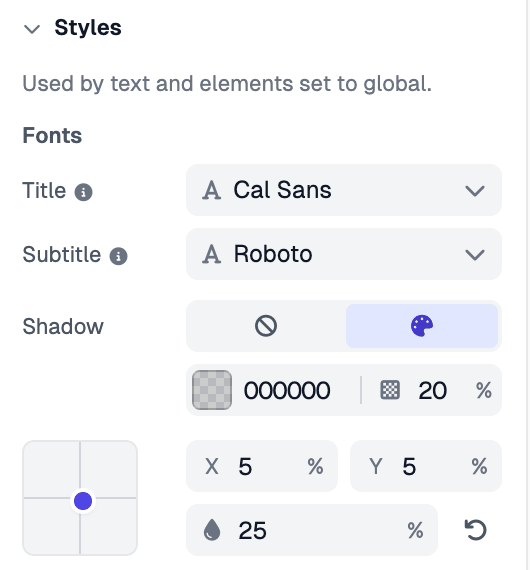
Click an empty part of the canvas (or press Esc) so nothing is selected. In the inspector, use Styles to change the project fonts and shadow for every linked element, and Colour replacer to swap a color throughout the project.
Global settings
Global settings let you apply the same styling across multiple elements in your project, so you can update your design more quickly and keep things consistent.
To access them, click an empty part of the canvas (or press Esc) so nothing is selected. The inspector on the right then shows the project settings, including Styles and Colour replacer.
Why use Global settings?
Global settings are useful when you want to:
keep your project styling consistent
update multiple elements at once
save time when changing shadows, fonts, or colors across a project
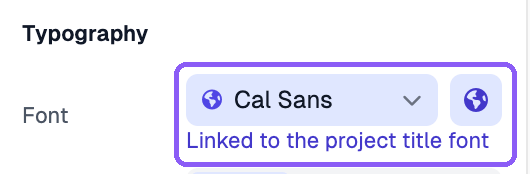
If you want more individual control, unlink an element from the project setting. Select the element, then click the globe button next to its font, or click its linked shadow and choose to unlink it. Click the globe button again to link it back.
Using an AI agent
Ask your agent to change the font, shadow or a color across the whole set, for example “use Inter for every title” or “swap our old brand blue for #2F5BEA”. It uses the same project fonts, project shadow and Colour replacer, so you can fine-tune the results here afterwards.
What is included in Global settings?
Project shadow
In Styles, use Shadow to set or change the shadow for elements that are linked to the project shadow. This can be applied to:
Title elements
Image elements
Device elements
Project fonts
In Styles, under Fonts, choose the Title and Subtitle fonts used by text that is linked to the project font.
Colour replacer
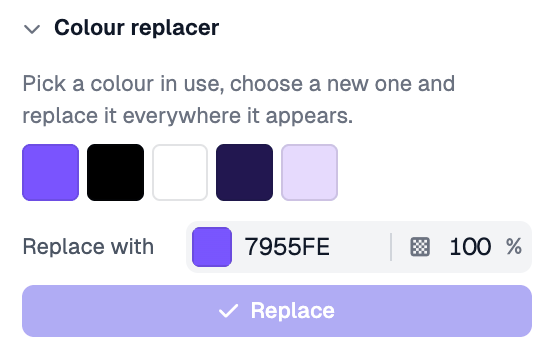
Use Colour replacer to quickly update colors across your project:
choose a color already used in your project
choose the new color you want next to Replace with
click Replace to apply it throughout the project
This is useful when you want to quickly update your project colors without editing each element one by one.
How do I know if an element is linked?
Select the element and look in the inspector:
A linked font shows a globe and Linked to the project title font (or subtitle font).
A linked shadow shows Project shadow and Linked to the project shadow.
Clicking a linked font or shadow opens a small panel where you can change the project setting for everything that uses it, or unlink just this element.