

What is the New editor and how do I switch to Classic?
AppScreens has a new editor. It opens by default and is shown as New (Beta) in the top toolbar of the designer. The previous editor is still available as Classic.
Our help articles follow the New editor. If you're using Classic, some buttons and panels will look different. Switch back to New to follow along.
Switch between New and Classic
Open your project.
In the top toolbar, next to undo and redo, click Classic. You can also open the More menu (the three dots in the top right) and choose Switch to classic editor.
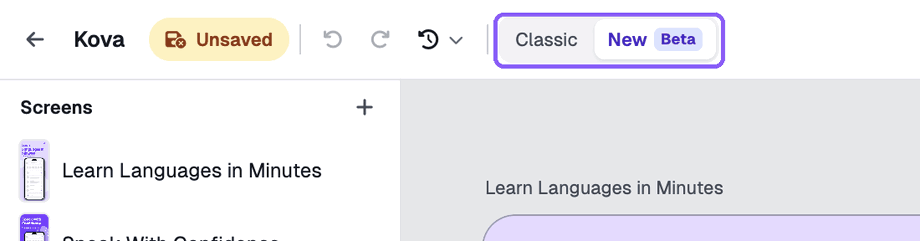
To go back to the New editor, click the Beta button (Try the new editor) near the top right of the Classic toolbar.
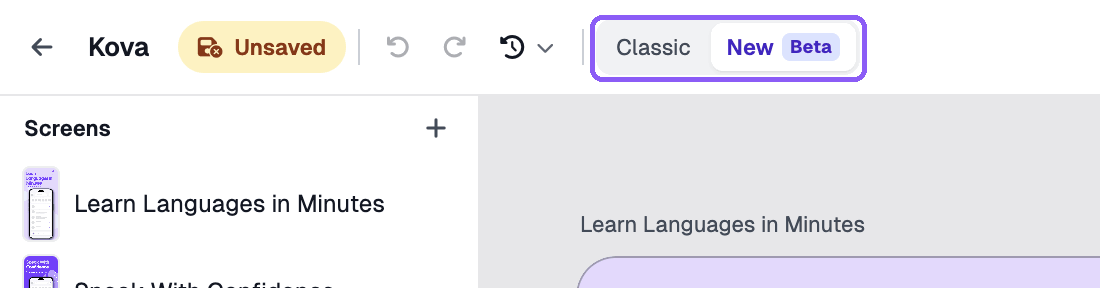
Your changes stay as they are when you switch, because both editors open the same project. AppScreens remembers your choice in this browser.
Good to know
The designer needs a browser window at least 1024 pixels wide. On a smaller window you'll see Screen Size Too Small.