
How do I undo or redo changes?
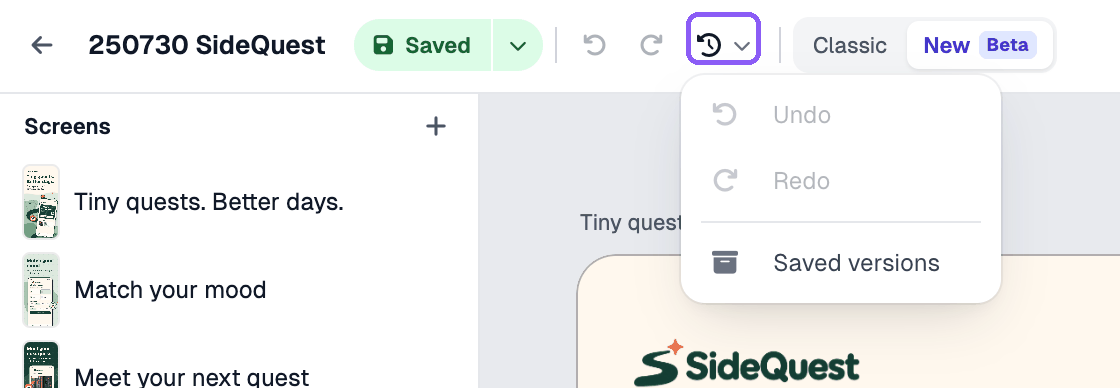
Click Undo in the top bar or press ⌘ + Z to undo a change, and click Redo or press ⇧ + ⌘ + Z to redo it. The History menu next to them shows what the next undo and redo will change.
You can undo and redo actions if you make a mistake or want to go back.
In the top bar, click Undo (the curved arrow pointing left), or press ⌘ + Z.
Click Redo (the curved arrow pointing right), or press ⇧ + ⌘ + Z.
Click the clock icon next to them to open the History menu. It shows what the next undo and redo will change, for example Changed screen 2.
See earlier saved versions
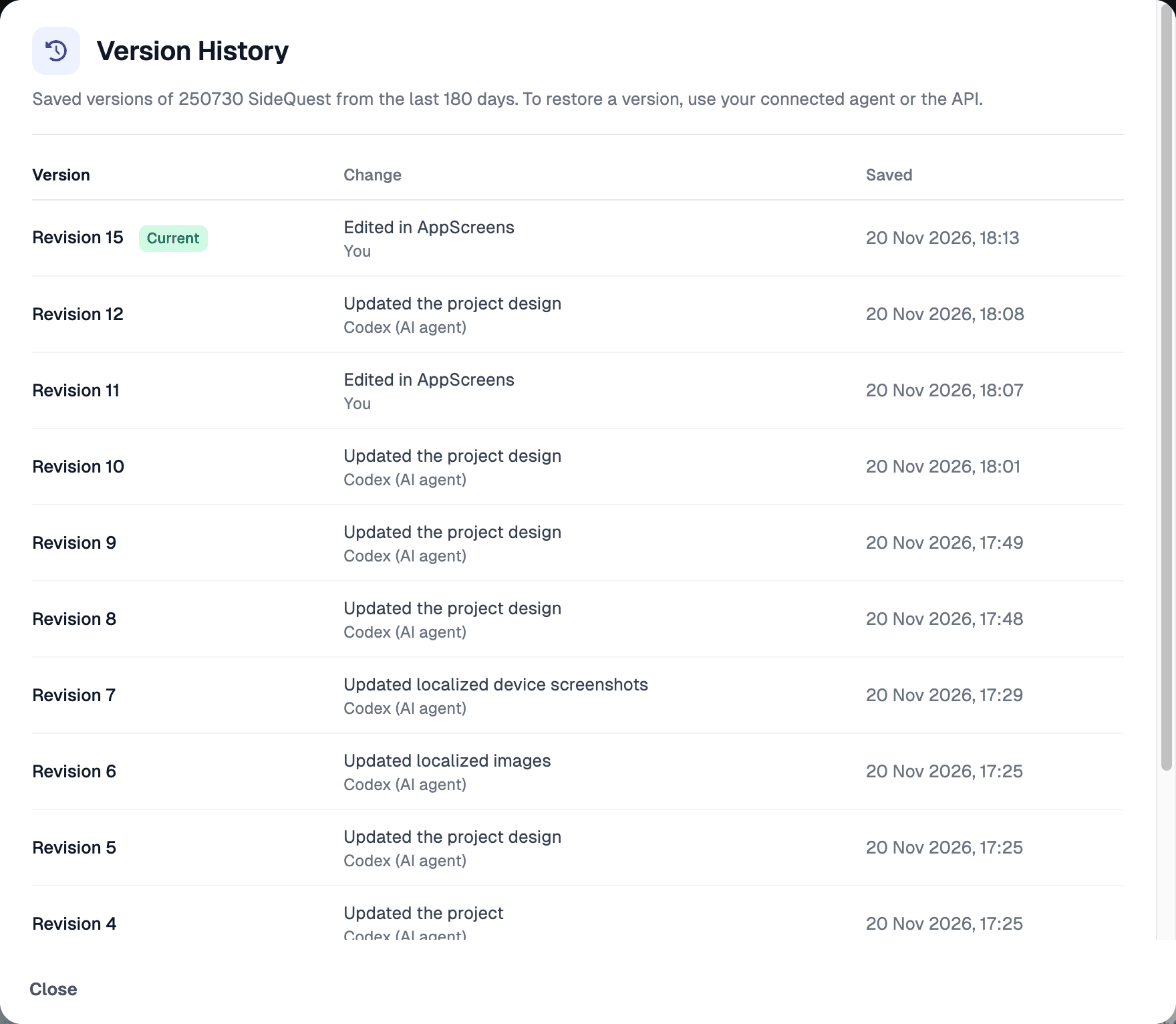
To see the versions of your project that have been saved, open the History menu and choose Saved versions. You can also open the project's ⋯ menu on the Projects page and choose Version history.
Each saved version shows what changed, who made it, including changes made by an AI agent, and when it was saved. To restore a version, use your connected AI agent or the API.