What are the output devices I can choose from on AppScreens?
AppScreens offers output sizes and display devices for Apple, Android and other supported formats. An output size determines the dimensions of your exported screenshot. A display device is the device shown in the design.
How to add output sizes
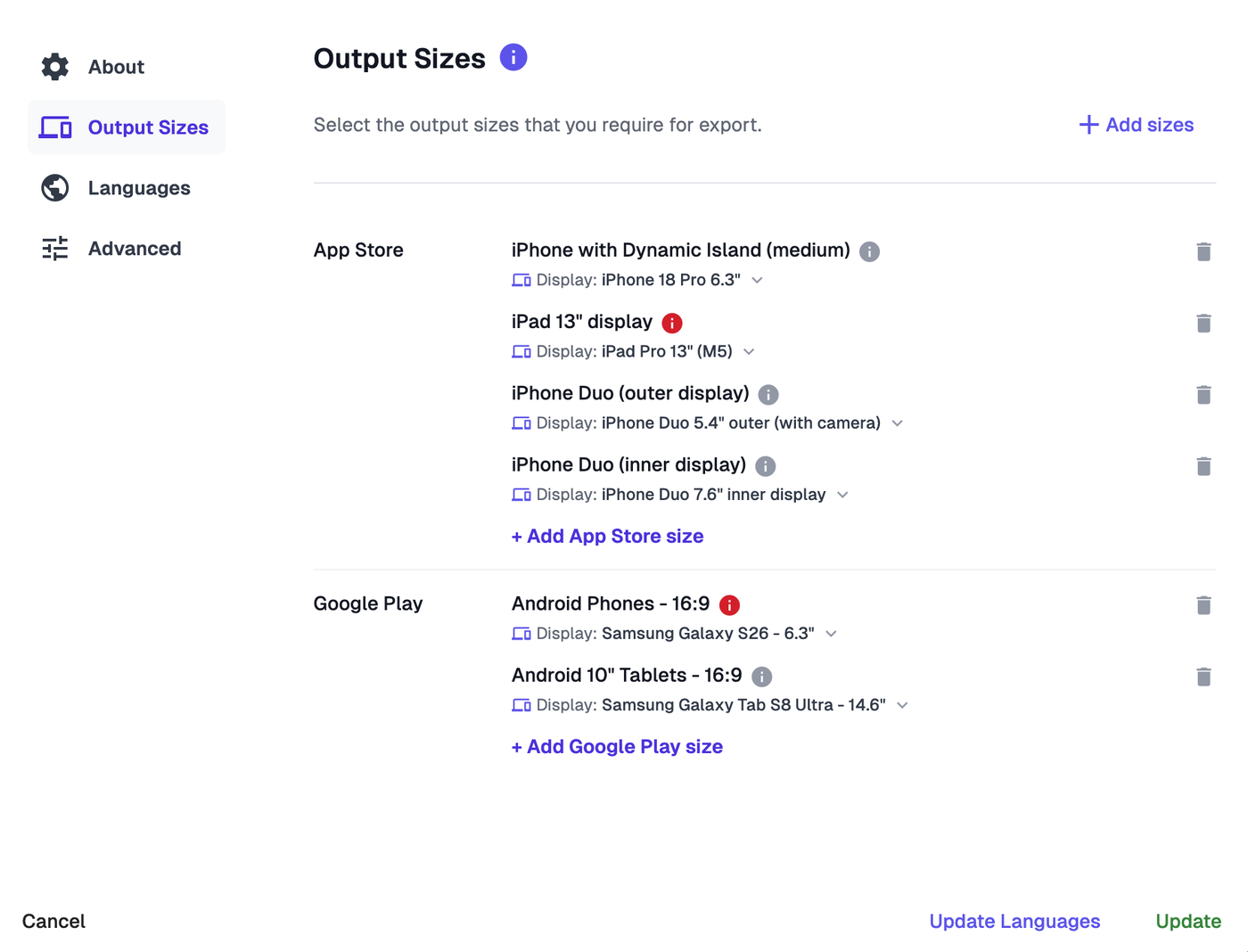
Open Output Sizes when creating a project. For an existing project, go to Project Setup → Output Sizes in the Designer.
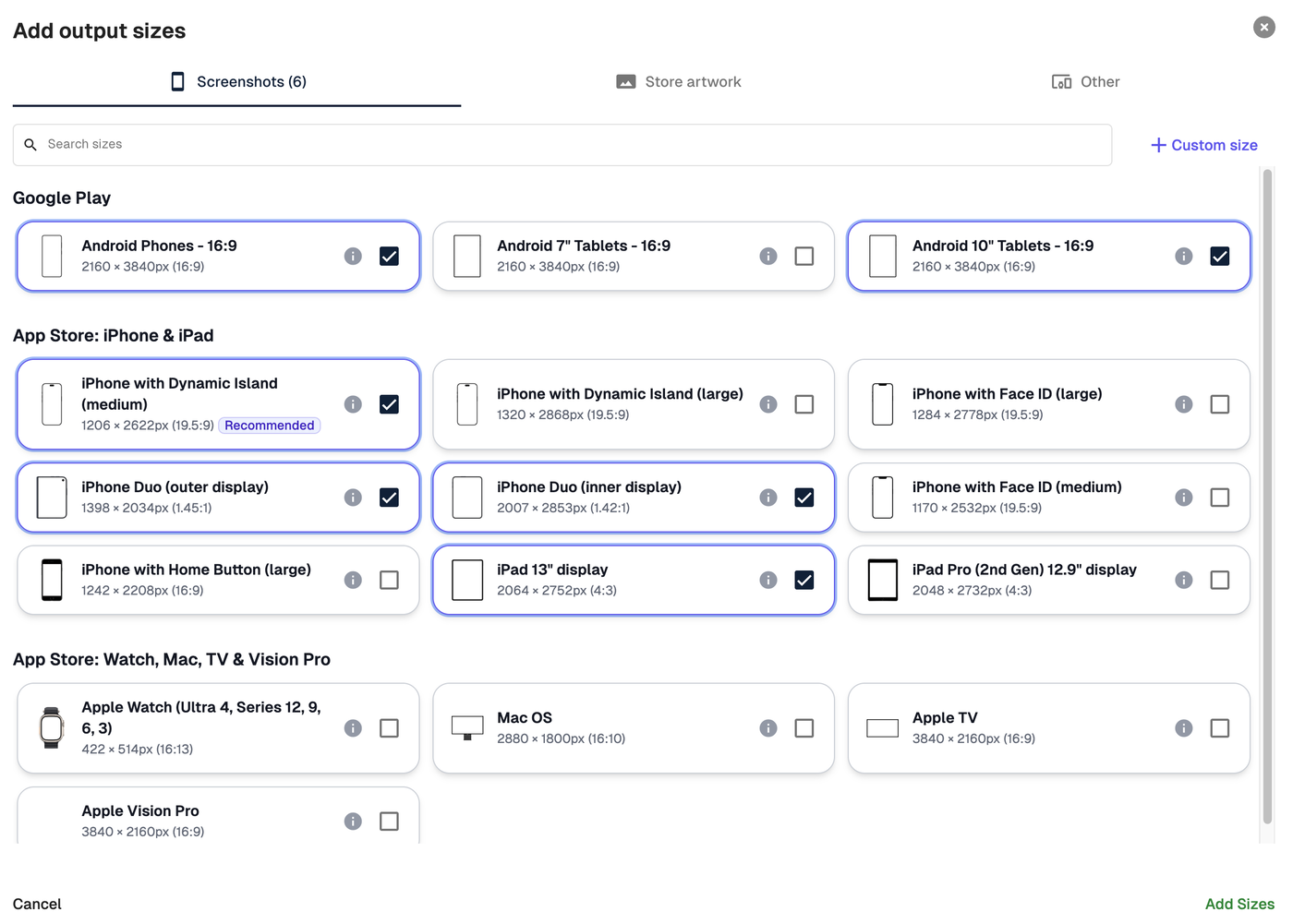
Click Add sizes at the top of the screen. You can also click Add App Store size or Add Google Play size in the corresponding store section.
In Add output sizes, choose a tab:
Screenshots for App Store and Google Play screenshot presets.
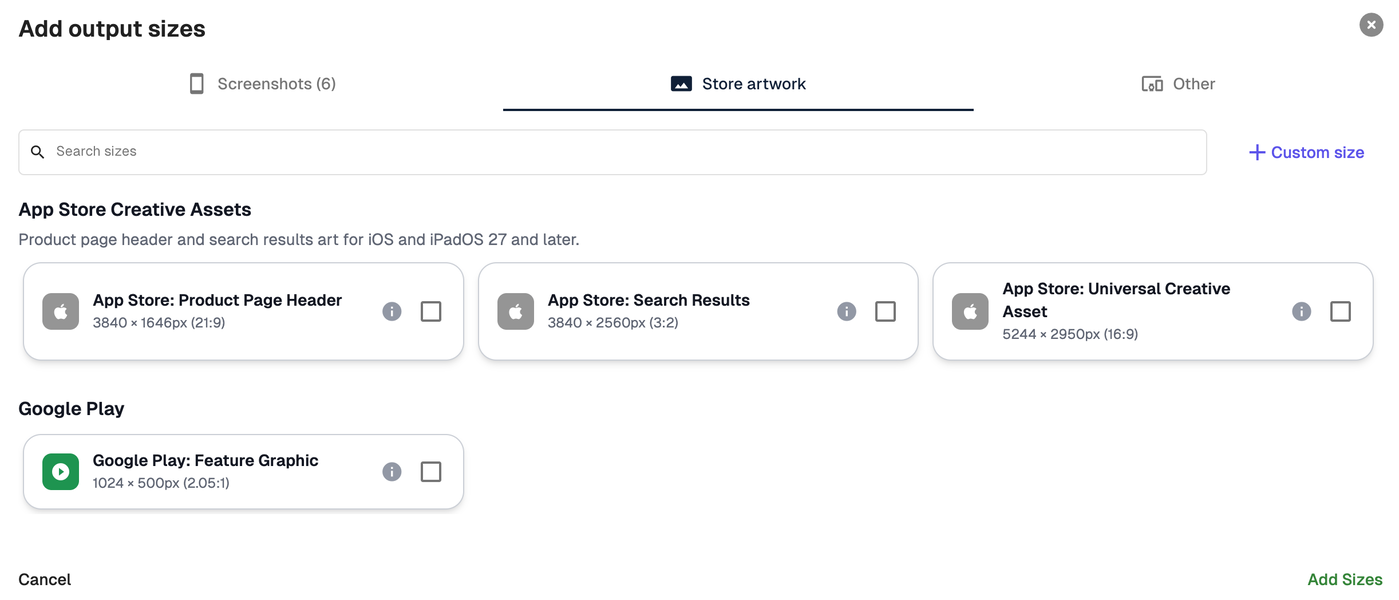
Store artwork for Apple App Store creative assets and the Google Play Feature Graphic.
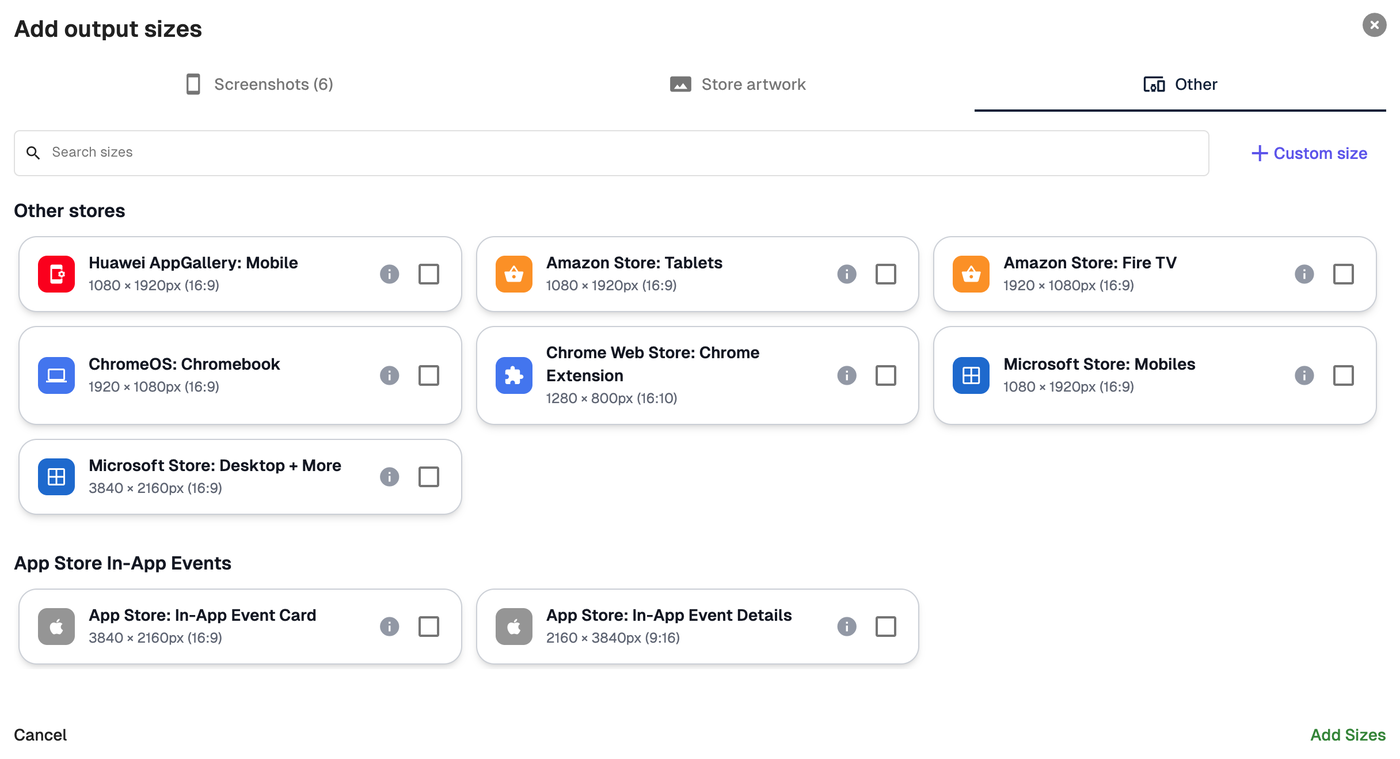
Other for presets for other stores and App Store In-App Events.
Tick the sizes you want. Use Search sizes to find a preset or click + Custom size to enter your own dimensions.
Click Add Sizes. If you’re editing an existing project, click Update on the Output Sizes screen to save your changes.
If you’re working with an AI agent connected through AppScreens MCP, it plans the required and recommended sizes for the stores and devices your app supports, and asks you about anything it can’t work out. You can review and adjust those choices in the Designer.
How to change the display device
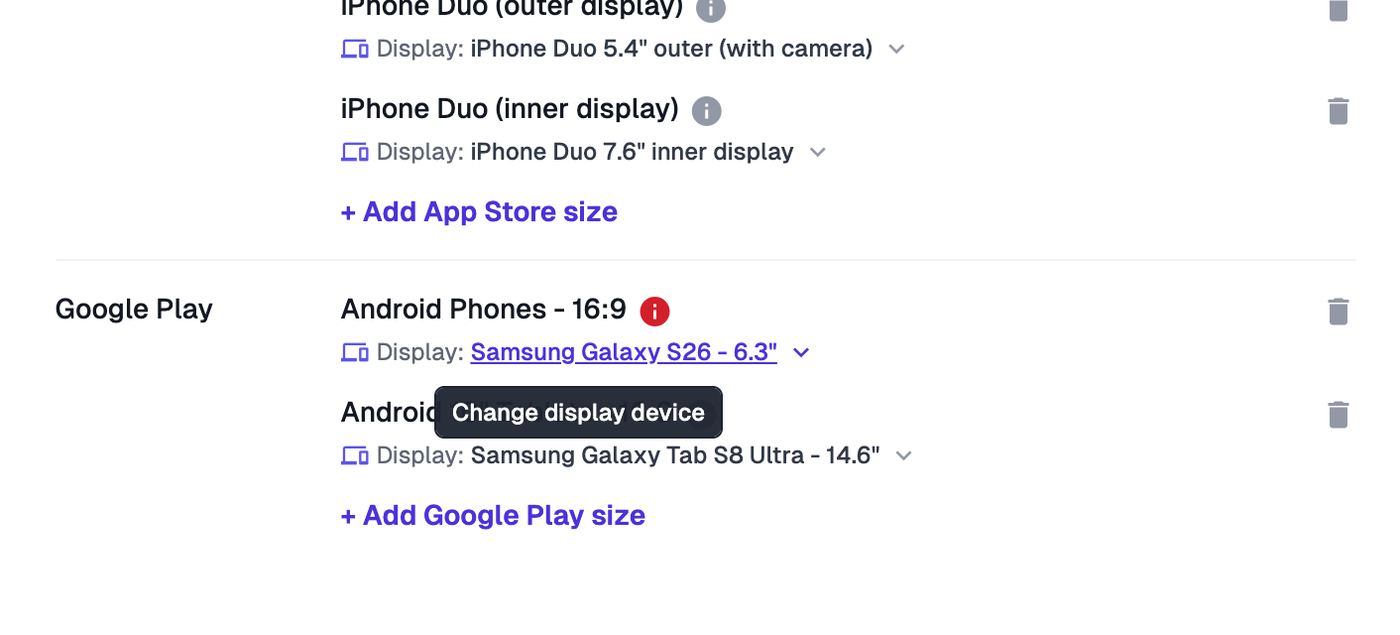
In Output Sizes, hover over the device name next to Display beneath the output size. The name becomes underlined and shows the Change display device tooltip.
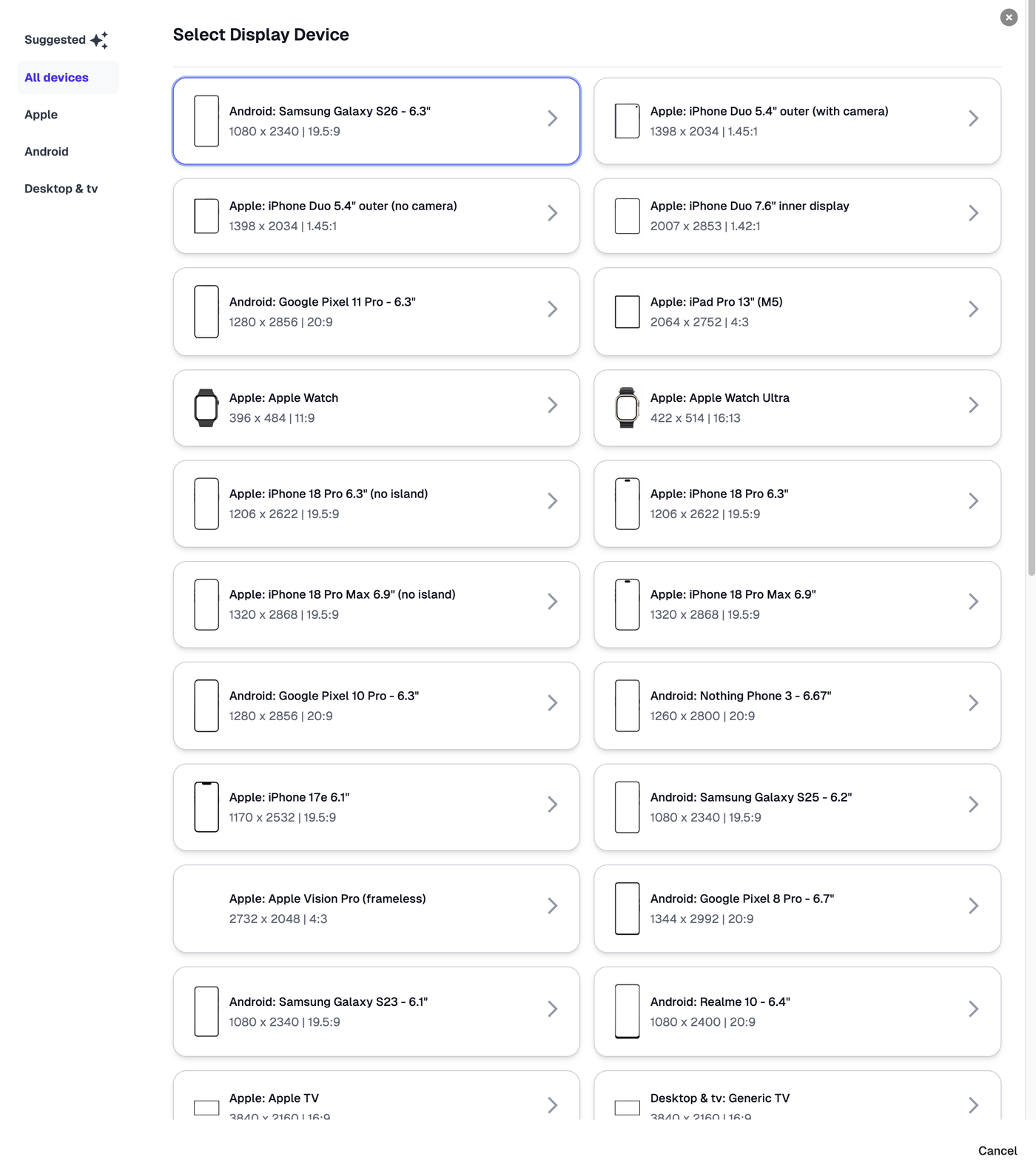
Click the device name to open Select Display Device.
Browse Suggested or All devices, or filter by Apple, Android, or Desktop & tv. Select the device you want to show in your design. The export dimensions still come from the selected output size.
Available output sizes and devices
Output sizes
App Store: iPhone and iPad
iPhone with Dynamic Island (medium): 1206 × 2622 px
iPhone with Dynamic Island (large): 1320 × 2868 px
iPhone with Face ID (large): 1284 × 2778 px
iPhone with Face ID (medium): 1170 × 2532 px
iPhone with Home Button (large): 1242 × 2208 px
iPhone Duo (outer display): 1398 × 2034 px
iPhone Duo (inner display): 2007 × 2853 px
iPad 13" display: 2064 × 2752 px
iPad Pro (2nd Gen) 12.9" display: 2048 × 2732 px
App Store: Watch, Mac, TV and Vision Pro
Apple Watch: 422 × 514 px
Mac OS: 2880 × 1800 px
Apple TV: 3840 × 2160 px
Apple Vision Pro: 3840 × 2160 px
Google Play
Android Phones - 16:9: 2160 × 3840 px
Android 7" Tablets - 16:9: 2160 × 3840 px
Android 10" Tablets - 16:9: 2160 × 3840 px
For store artwork, other stores and custom sizes, see What App Stores can I create screenshots for?
Display devices
Apple
iPhone 18 Pro 6.3" (with or without the Dynamic Island)
iPhone 18 Pro Max 6.9" (with or without the Dynamic Island)
iPhone 17e 6.1"
iPhone 14 Plus 6.5"
iPhone 8 Plus 5.5"
iPhone Duo 5.4" outer display (with or without the camera)
iPhone Duo 7.6" inner display
iPad Pro 13" (M5)
iPad Pro 12.9" (2nd gen)
Apple Watch and Apple Watch Ultra
MacBook Air M2 13.6" and Mac Studio Display
Apple TV
Apple Vision Pro (frameless)
Android phones
Google Pixel 3 - 5.5"
Google Pixel 5 - 6"
Samsung Galaxy S23 - 6.1"
Samsung Galaxy S25 - 6.2"
OnePlus 6 - 6.28"
Google Pixel 10 Pro - 6.3"
Google Pixel 11 Pro - 6.3"
Samsung Galaxy S26 - 6.3"
Realme 10 - 6.4"
Nothing Phone 3 - 6.67"
Google Pixel 6 Pro - 6.7"
Samsung Galaxy Z Flip - 6.7"
Google Pixel 7 Pro - 6.7"
Google Pixel 8 Pro - 6.7"
Samsung Galaxy S21 Ultra - 6.8"
Samsung Galaxy Note20 Ultra - 6.9"
Android tablets
Samsung Galaxy Tab S3 (Legacy 7")
Samsung Galaxy Tab S3 (Legacy 10")
Samsung Galaxy Tab S7 - 11"
Samsung Galaxy Tab S8 Ultra - 14.6"
Android Tablet (Generic)
Desktop & TV
Microsoft Surface Laptop Studio - 14.4"
Generic TV
Android TV