

Why does my export show a font weights warning?
The Font weights warning means a font in your screenshots does not include every weight or style you used, such as bold or italic, for the screenshots and languages you are exporting. To fix it, choose a font that supports those styles, upload the matching font files, or remove the unsupported formatting.
Where to find export warnings
Click Export in the top bar.
Open the Warnings tab. It only appears when there is something to check before you export.
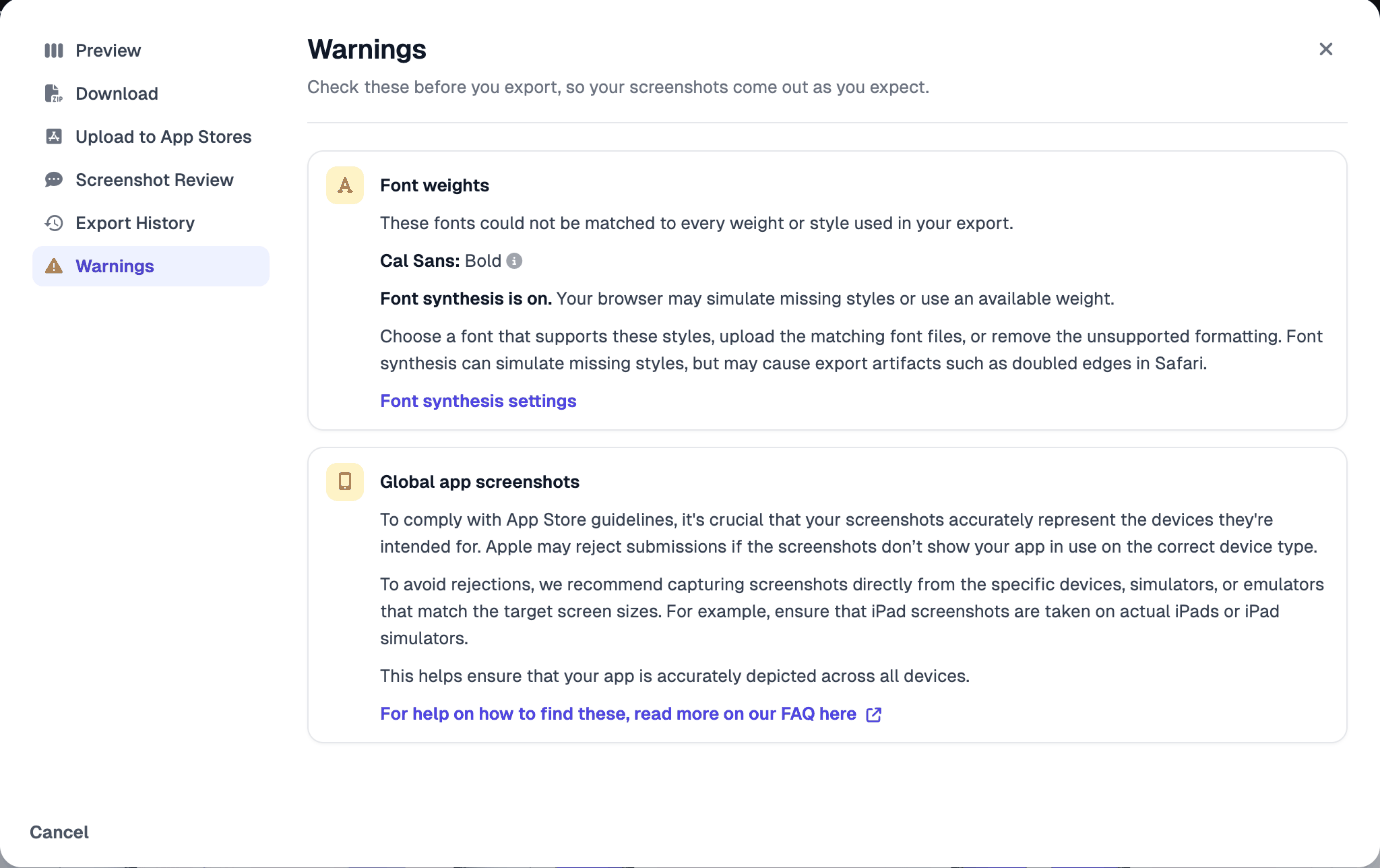
What the font weights warning shows
Each font in the list shows the weights or styles that could not be matched, for example Bold or Italic. Hover the info icon next to a font to see its Available weights and the Weights used in your project.
If AppScreens could not read a font’s information, the warning says Could not verify font weights. This does not necessarily mean a weight is missing, so check the preview before you export.
How do I fix a font weights warning?
Choose a different font that includes the weights and styles you use, from the font picker in the Typography section of the inspector.
Upload the matching font files, for example the bold or italic .ttf or .otf file of your custom font. See How to add a custom font.
Remove the unsupported formatting, for example turn off Bold or Italic in the text toolbar.
What is font synthesis?
Font synthesis lets your browser simulate a missing bold or italic style. The warning tells you whether it is on or off:
On (Auto): your browser may simulate missing styles or use an available weight. This can cause export artifacts, such as doubled edges in Safari.
Off (None): an available weight or style is used instead, so bold or italic may not appear.
To change it, click Font synthesis settings in the warning, or open Account > Advanced and set Font synthesis to Auto or None.
What does the Global app screenshots warning mean?
The Warnings tab can also show Global app screenshots. This appears when the same app screenshot is used for output sizes it may not suit, for example iPhone screenshots shown on iPad. Apple may reject screenshots that do not show your app on the correct device, so upload device-specific app screenshots for each output size where you can.