

How do I reorder screenshots in my project?
If you want to change the order of the screenshots in your screenshot set, use Reorder.
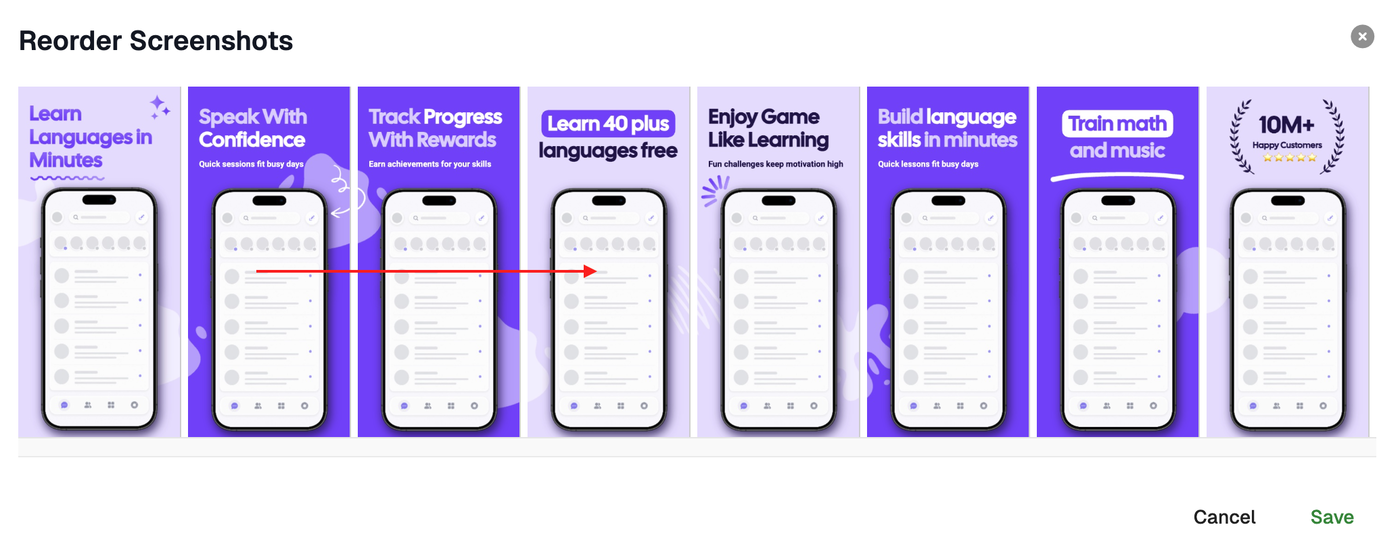
For example, this is how you would move screenshot 2 to position 6, or screenshot 10 to position 1.
To reorder screenshots
Open your project
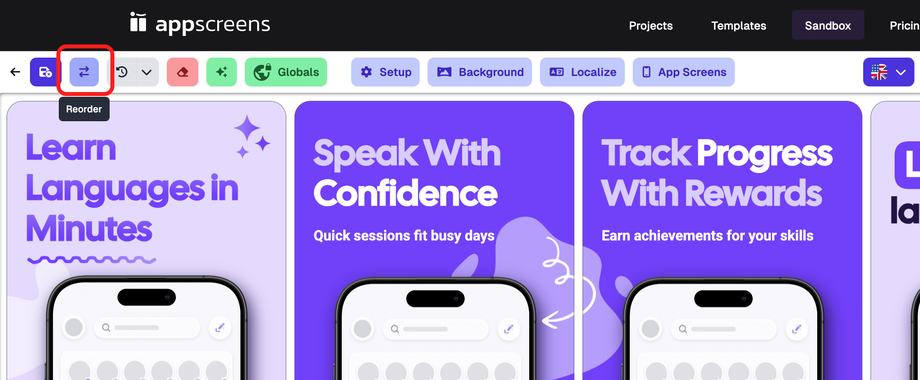
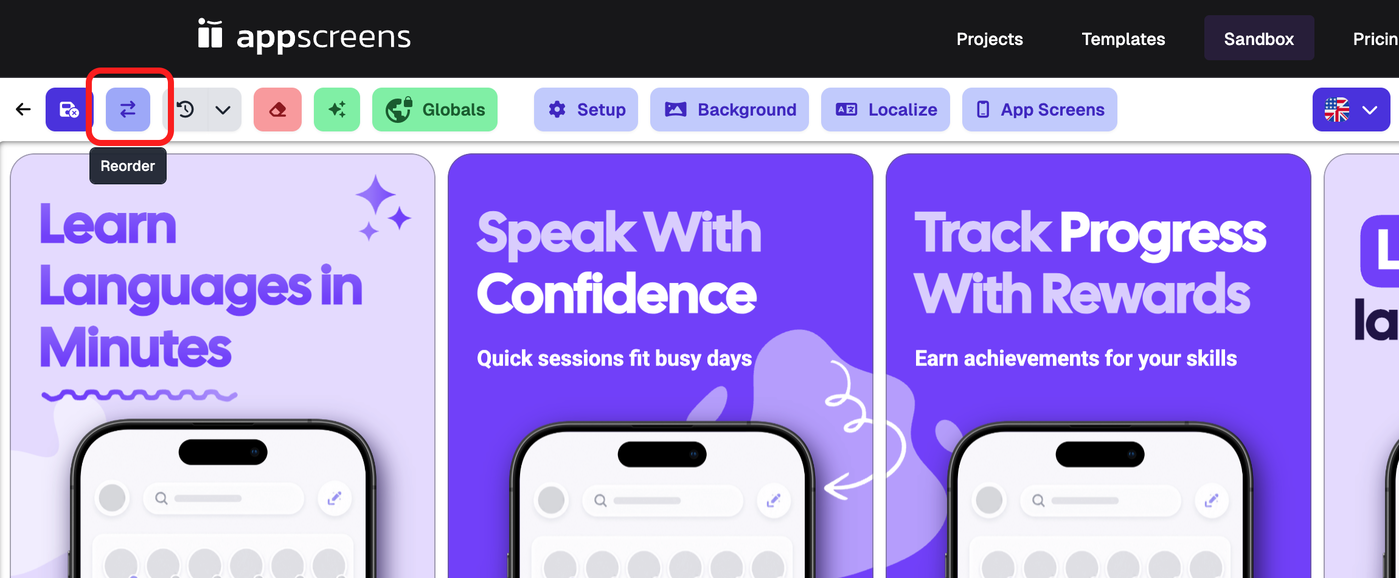
Click Reorder in the top toolbar. The icon shows two horizontal arrows pointing in opposite directions.
Drag the screenshots into the order you want
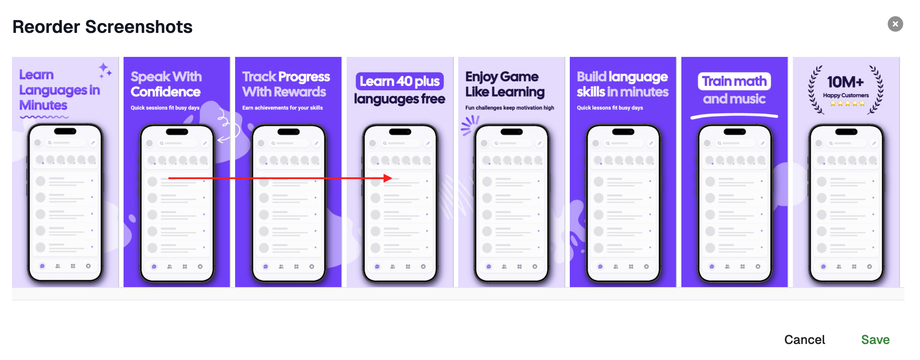
Save the new order
You can also right-click a screenshot and choose Reorder if that option is available.
What this changes
Reordering screenshots changes the order of the screenshots in your screenshot set.
It does not change:
the layer order inside a screenshot
the order of elements inside a screenshot
the raw app UI screenshot inside a device element
If you want to move text, images, shapes, or devices in front of or behind each other, use layer order in Layouts & Elements instead.
Tip
Reordering screenshots is useful when you want to change the story flow of your screenshot set, for example moving your strongest screenshot to position 1 or grouping similar features together.