

How do I restyle my project?
Use Restyle screenshots when you want to quickly create a new look for your screenshot set.
Restyling is useful when you want to try a different layout, design style or template without starting again from scratch. It is especially handy for AB testing!
You can restyle your whole screenshot set, or change the layout of one individual screenshot using Pick a Preset.
Restyle your full screenshot set
To restyle your screenshots:
Open your project in the AppScreens designer.
Click the Restyle screenshots button in the top toolbar.
Choose how you want AppScreens to create the new style.
Click Next and follow the flow.
You can choose between Customize Template and Quick Create.
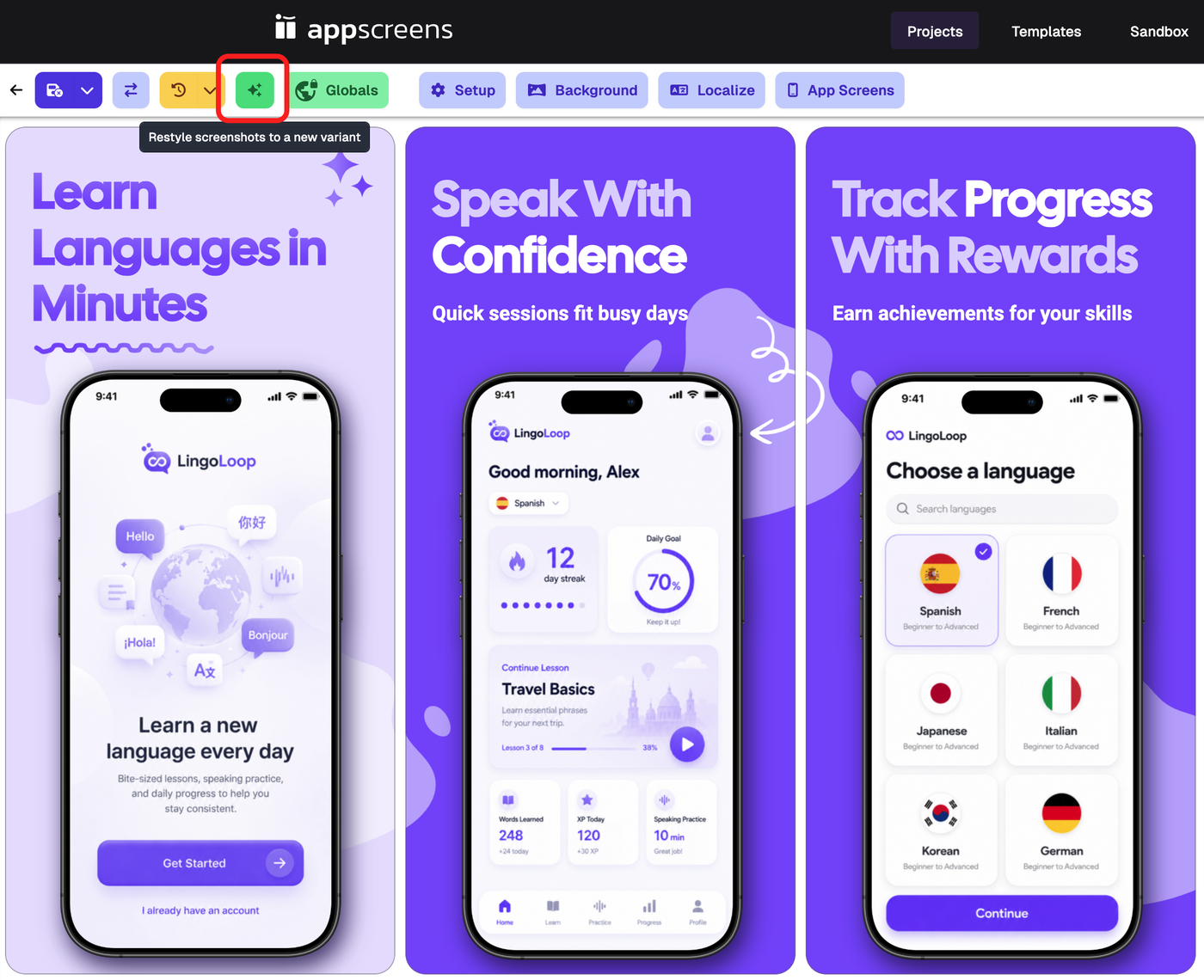
Customize Template
Choose Customize Template when you want to start from a conversion-focused template and customise the details yourself.
This is best when you want more control over the final design.
With this option, you can choose a template style, then continue editing the layout, elements, text, images and styling in the designer.
Quick Create
Choose Quick Create when you want AppScreens to create a new screenshot set for you quickly.
This is best for a faster, simpler setup that you can edit afterwards.
Quick Create lets you pick a style and generate a new screenshot set, then continue customising it in the designer if needed.
Change the layout of one screenshot
If you only want to change one screenshot, use Pick a Preset instead of restyling the whole project.
To change one screenshot layout:
Click the screenshot you want to update.
Open Layouts & Elements in the edit panel.
Click Pick a Preset.
Choose a layout from the preset selector.
Apply it to the selected screenshot.
This replaces that screenshot’s layout with a built-in or saved preset.
Each individual template screen is available as a preset, so you can choose from many ready-made layouts without changing the whole project.
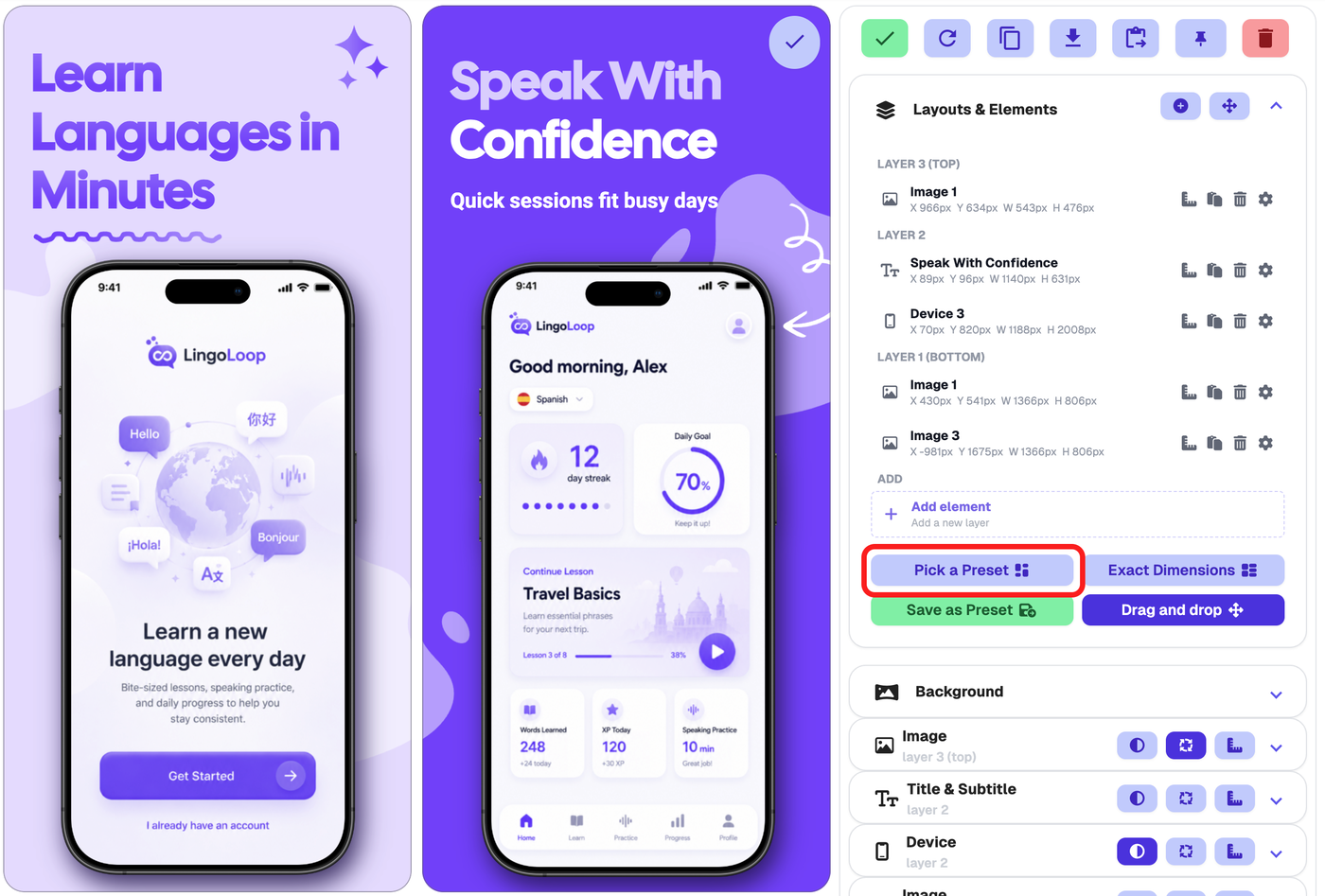
Preset types
The layout selector can include different preset groups, such as:
Template Layouts
Layouts from AppScreens templates.
Your Presets
Layouts you have saved yourself using Save as Preset.
Basic Layouts
Simple starter layouts you can use as a base.
After applying a preset, you can continue editing the screenshot as normal.
Restyle project vs Pick a Preset
Goal | Use |
|---|---|
Change the look of the whole screenshot set | Restyle screenshots |
Generate a new quick design style | Quick Create |
Start from a template and customise it | Customize Template |
Change only one screenshot layout | Pick a Preset |
Reuse one of your own saved layouts | Pick a Preset → Your Presets |
After restyling
After restyling or applying a preset, you can still customise the result.
You can:
edit text, devices, images and shapes
move or resize elements with drag-and-drop
fine-tune positioning with Exact Dimensions
change backgrounds
copy, duplicate or delete elements
save a screenshot layout as your own preset
preview and export when finished