

How do I move, resize and rotate elements on the canvas?
Click an element on the canvas, then drag it to move it, drag a handle on its frame to resize it, or drag the rotate handle above it to rotate it. There is no drag-and-drop mode to turn on.
Drag-and-drop lets you move and resize elements directly on the canvas.
This is the fastest way to adjust a screen visually. You can drag elements into position, resize them, rotate them and use alignment guides to line things up with other elements.
Use drag-and-drop when you want to quickly adjust elements such as text, devices, images, shapes, badges, icons, doodles or other design details.
Using an AI agent? You can also ask it to move or resize things, for example "Make the device on screenshot 3 a little bigger and center it." Then use drag-and-drop here for any final tweaks.
No mode to turn on
In the designer, every element can be dragged as soon as you click it. There is no drag-and-drop mode to enter or leave. Moving an element is an edit like any other, so it is saved with your project and you can undo it with ⌘ + Z.
If you want to stop things moving by accident, click Lock in the tools bar at the bottom of the canvas (or press ⌘ + K). Click it again to unlock.
Select the element you want to move
Open your project in the designer.
Click the element on the canvas. A frame with handles appears around it, with a small toolbar below.
If the element is hard to click, for example because it sits behind something else, click it in the Layers list on the left instead.
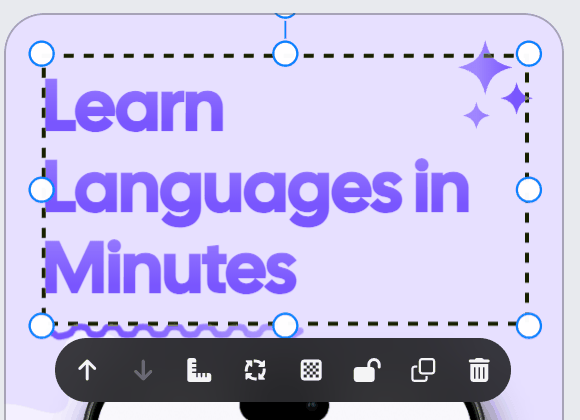
Move an element
Click and drag the element on the canvas.
Move it into the position you want.
Use the alignment guides to help line it up.
Resize an element
Select the element.
Drag one of the handles on its frame.
Adjust the size until it looks right.
This is useful for quickly resizing devices, images, shapes, text blocks and decorative elements.
Rotate an element
Select the element and drag the rotate handle above its frame. To type an exact angle, click Rotate in the element toolbar, or use Rotation in the Layout section of the inspector.
Move several elements together
Click the first element, then hold ⇧ and click the others. You can also drag a box around them, starting on an empty part of the screen.
Drag any of the selected elements to move them together, or drag a handle to resize them all.
To line them up, use the Align buttons in the inspector.
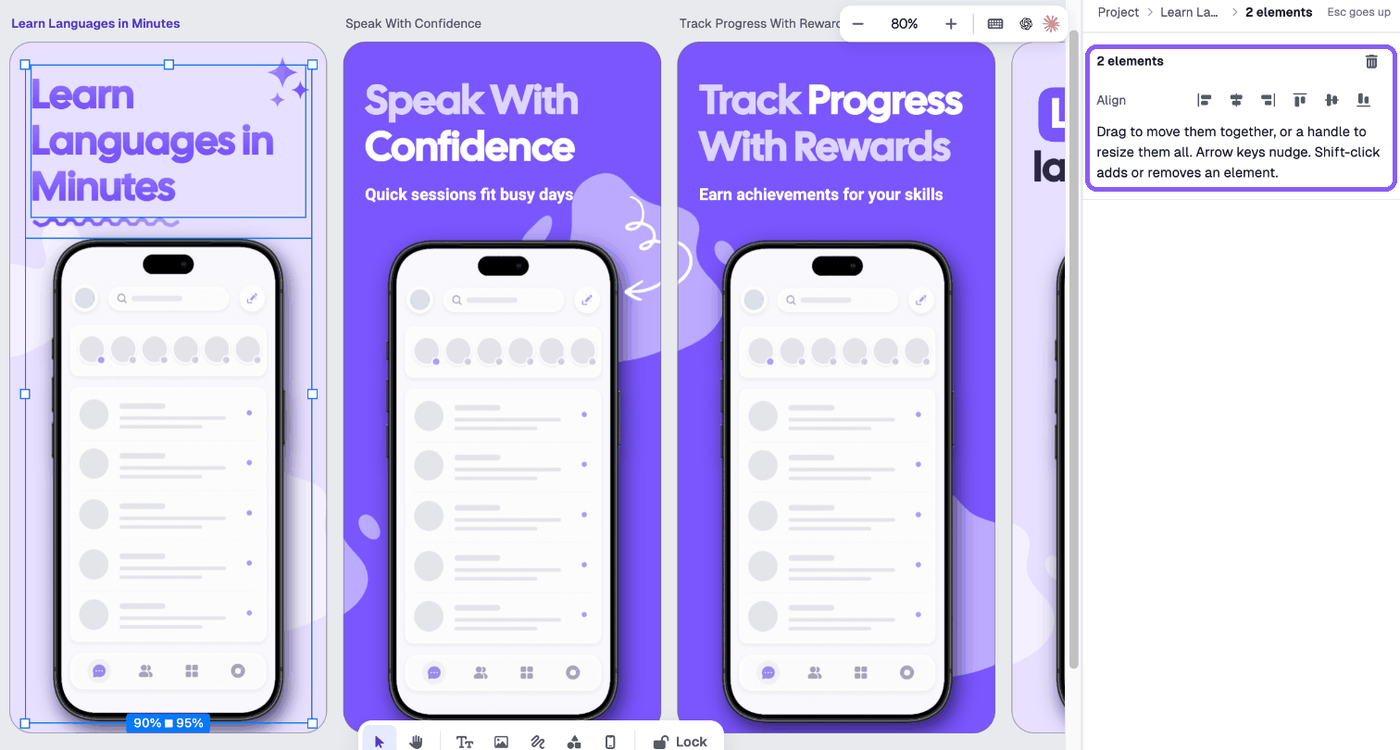
Use alignment guides
While you drag elements, AppScreens shows alignment guides.
These help you:
center an element on a screen
line up elements with each other
keep spacing visually consistent
Alignment guides are especially useful when you want titles, devices, badges or decorative elements to line up across a whole screenshot set.
Use keyboard nudging for small adjustments
After selecting an element, you can use keyboard shortcuts for smaller movements.
On Mac, the shortcuts panel shows:
Action | Shortcut |
|---|---|
Nudge | Arrow keys |
Nudge further | ⇧ + Arrow keys |
Bring forward / send backward | ⌘ + ] / ⌘ + [ |
Lock position | ⇧ + ⌘ + L |
Lock / unlock the canvas | ⌘ + K |
To see every shortcut, click the keyboard icon next to the zoom level at the top right of the canvas. See What keyboard shortcuts are available in the designer?
When should I use exact values instead?
Use drag-and-drop when you want to move or resize elements visually.
Use exact values when you need precise control over:
X position
Y position
width
height
rotation
padding and layer structure
Set X, Y, width and height in the Layout section of the inspector, or with Move/resize in the element toolbar. For padding and layers, select the screen and click Exact dimensions. See How do I use exact dimensions?
A good workflow is to drag first, then type exact values only if you need to fine-tune them.
What if I can't select or move the element on the canvas?
If an element is hard to click, hidden behind another element, or partly off the edge of the screen, click it in the Layers list on the left.
If nothing moves at all, the canvas may be locked. Click Locked in the tools bar to unlock it.
If one element won't move, its position may be locked. Select it and click the padlock in the element toolbar, or press ⇧ + ⌘ + L.