How do I test my App Store Connect and Google Play connection?
To test your store connection, open the Projects page, select your app in the sidebar, open the Connections tab and click Test connections. AppScreens signs in to each store with its saved credential and checks it can reach your app.
Using an AI agent? Ask it to check your store connection. It can test the saved credentials for your app and tell you what needs fixing.
How to test your store connections
Go to the Projects page.
In the sidebar, select your app.
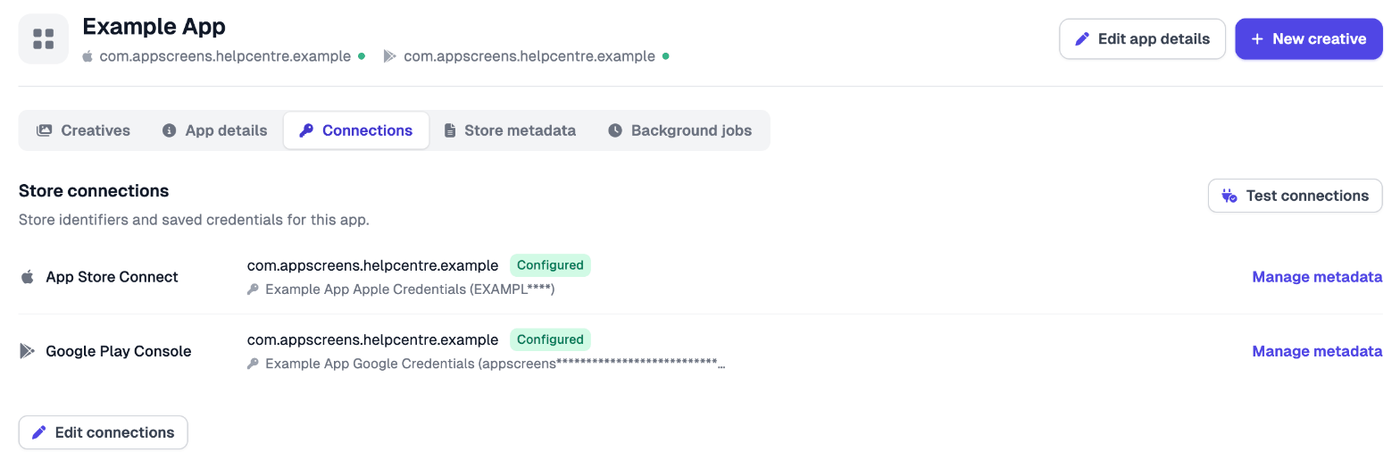
Open the Connections tab. Store connections shows each store’s identifier, its saved credential and a status such as Configured or Credentials needed.
Click Test connections. The button only appears when the app has a saved credential to test.
What do the results mean?
Connection ready: AppScreens signed in and can reach your app. You can upload.
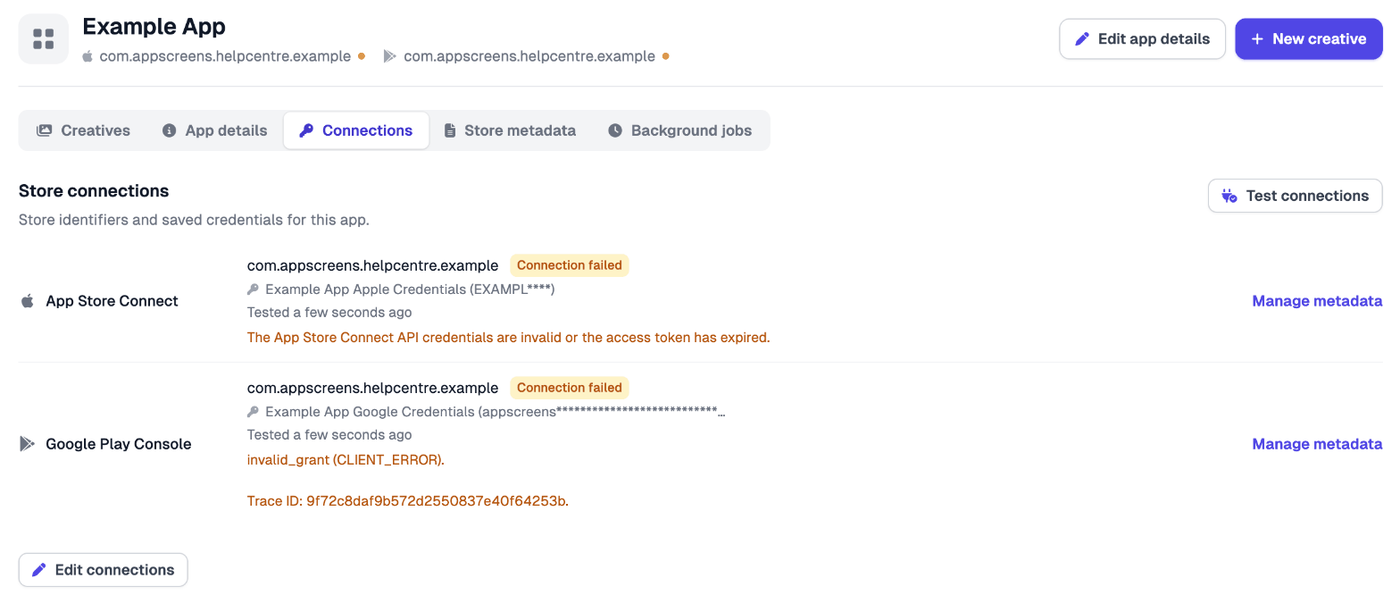
Connection failed: the store refused the credential or could not find the app. The store’s reason is shown under the row.
Check unavailable: the test could not run, so try again later.
Each result shows when it was last tested. If the app itself has a problem, such as a missing identifier, a Needs attention message lists what to fix.
How do I fix a failed connection?
Click Edit connections to check the app’s Apple bundle ID or Google Play package name and the credential it uses.
Check for any pending agreements in App Store Connect or Google Play Console.
Make sure the key has the right access. See credentials for App Store Connect and credentials for Google Play.
Then click Test connections again.