Which device should I use for iPhone with Dynamic Island?
When selecting iPhone with Dynamic Island in AppScreens, you can choose to have the device island already included in the device frame, or to hide this so that you can add your own app screenshots with a custom island.
If your app screenshot already shows a Dynamic Island, choose the frame without it so it doesn’t appear twice. If you're using the simulator to take your screenshots, untick 'Apply device mask to screenshot' to hide the island.
To change the display device for an iPhone with Dynamic Island output size:
In the top bar, click More (⋯), then Output sizes….
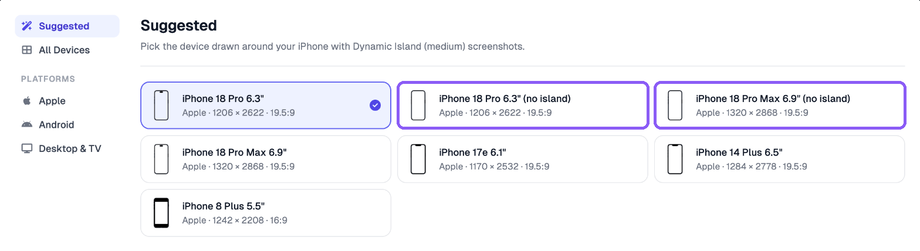
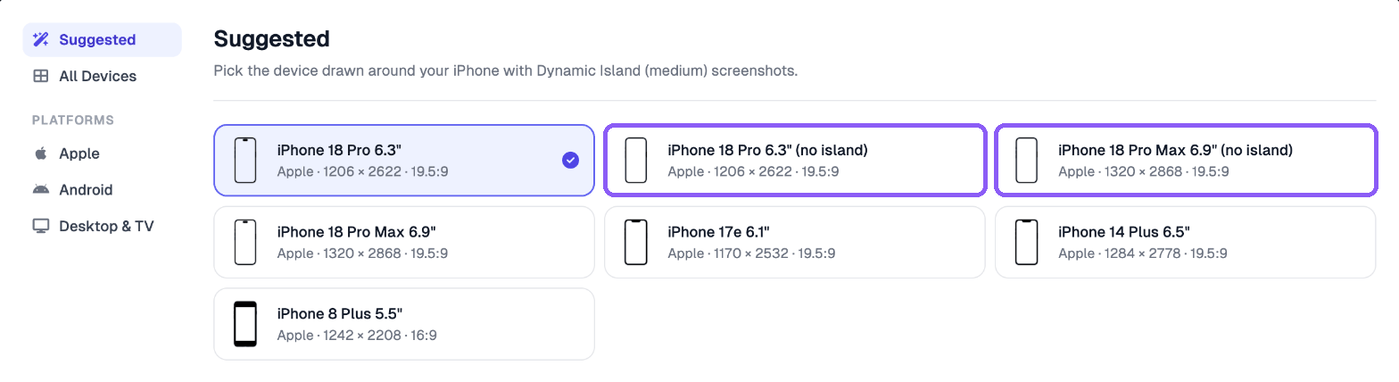
Under iPhone with Dynamic Island (medium) or (large), click the device name next to Display.
Select either the frame with the island, such as iPhone 18 Pro 6.3", or the one without it, such as iPhone 18 Pro 6.3" (no island). For the large size, use iPhone 18 Pro Max 6.9" or iPhone 18 Pro Max 6.9" (no island).
Click Update.
Using an AI agent? Tell it whether your captures already include the island and it will pick the matching frame.