

Why does Apple reject PNG screenshots with transparency?
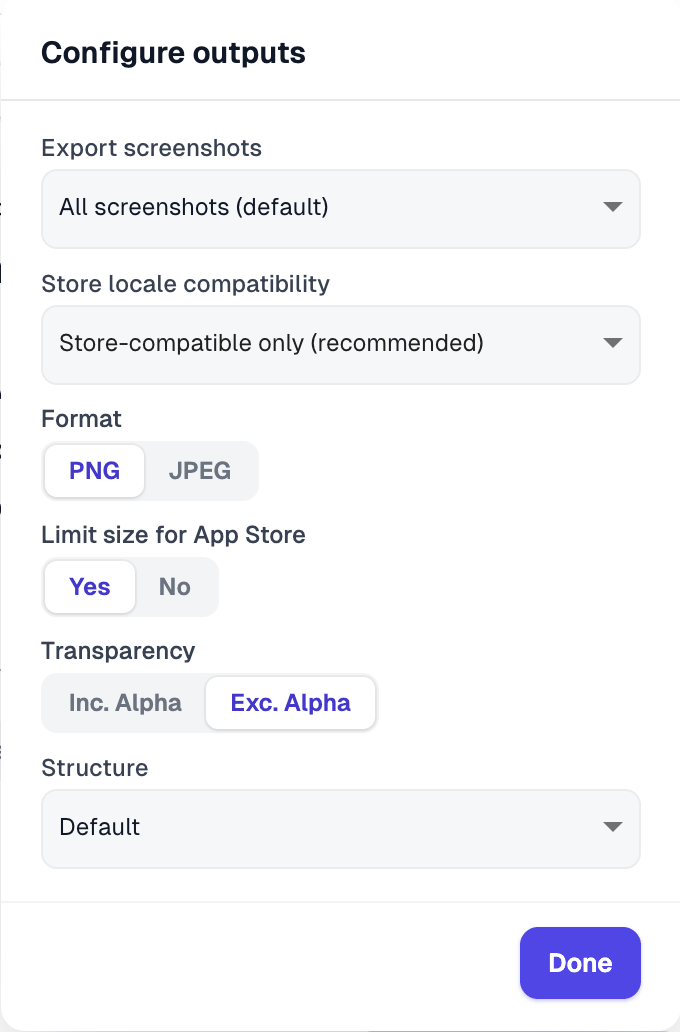
Apple rejects screenshots that contain transparency (alpha) layers. To fix it, click Export, open the Download tab, click Configure outputs and set Transparency to Exc. Alpha, or add a colored background or export as JPEG instead.
If you have chosen to export your completed screenshots to PNG, you'll need to be mindful of Alpha layers.
Apple will reject screenshots that contain transparency layers.
If you get this rejection or error, it means you need to either remove the transparency layers by adding a colored background to your project, or export in JPEG.
The simplest fix is to keep PNG and turn transparency off. Click Export in the top bar, open the Download tab, click Configure outputs and set Transparency to Exc. Alpha. Then click Done.
Uploading straight to the stores from AppScreens? Store uploads are generated without transparency, so you don't need to change anything.
Note: Apple only accepts the universal Creative Asset as PNG, so JPEG isn't available for it.