

What is Screenshot Review and how do I use it?
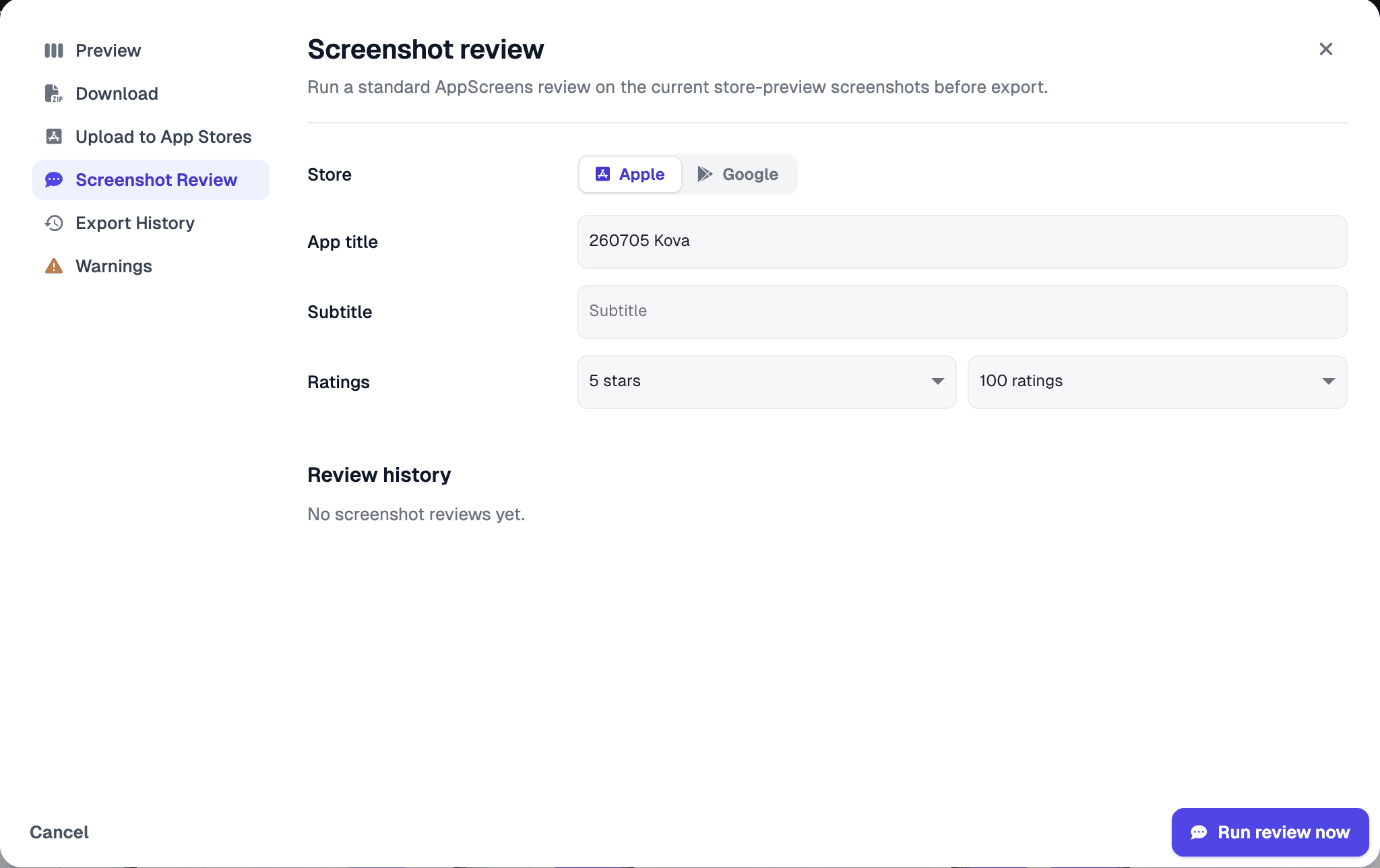
Screenshot Review gives your store-preview screenshots a standard AppScreens review before you export, with an overall score out of 100, what was found and recommended actions. Click Export, open Screenshot Review, check the details and click Run review now.
How to run a Screenshot Review
Save your project, then click Export in the top bar.
Open the Screenshot Review tab.
Under Store, choose Apple or Google. A store is only available if your project has an output size for it.
Check the App title and the Subtitle (or Short description for Google), and set the Ratings you want the review to assume.
Click Run review now. AppScreens renders your store-preview screenshots and queues the review.
How do I see my review results?
Finished reviews are listed under Review history with the store they were for and their score. Click View to open the report. If a review failed, click Retry.
The report includes an Overall score with a band from Poor to Excellent, a Summary, What we found and Recommended actions, each with a Try this suggestion.
Score bands: Poor 0 to 39, Weak 40 to 59, Needs polish 60 to 74, Good 75 to 89 and Excellent 90 to 100.
Who can use Screenshot Review?
Screenshot Review is available on active paid plans, and the project must be saved first. The review is advice only. It does not change your project or upload anything to the stores.