

How do I change the size of my title and subtitle?
AppScreens automatically scales your title and subtitle so they can adapt across different screenshot sizes and languages.
The exact size of your text depends on two things:
the Title / Title & Subtitle text settings
the size of the title element itself
If your text looks too small or too large, check both.
When you hover over the text element on your screenshot, the dashed outline shows the space currently available to that title element.
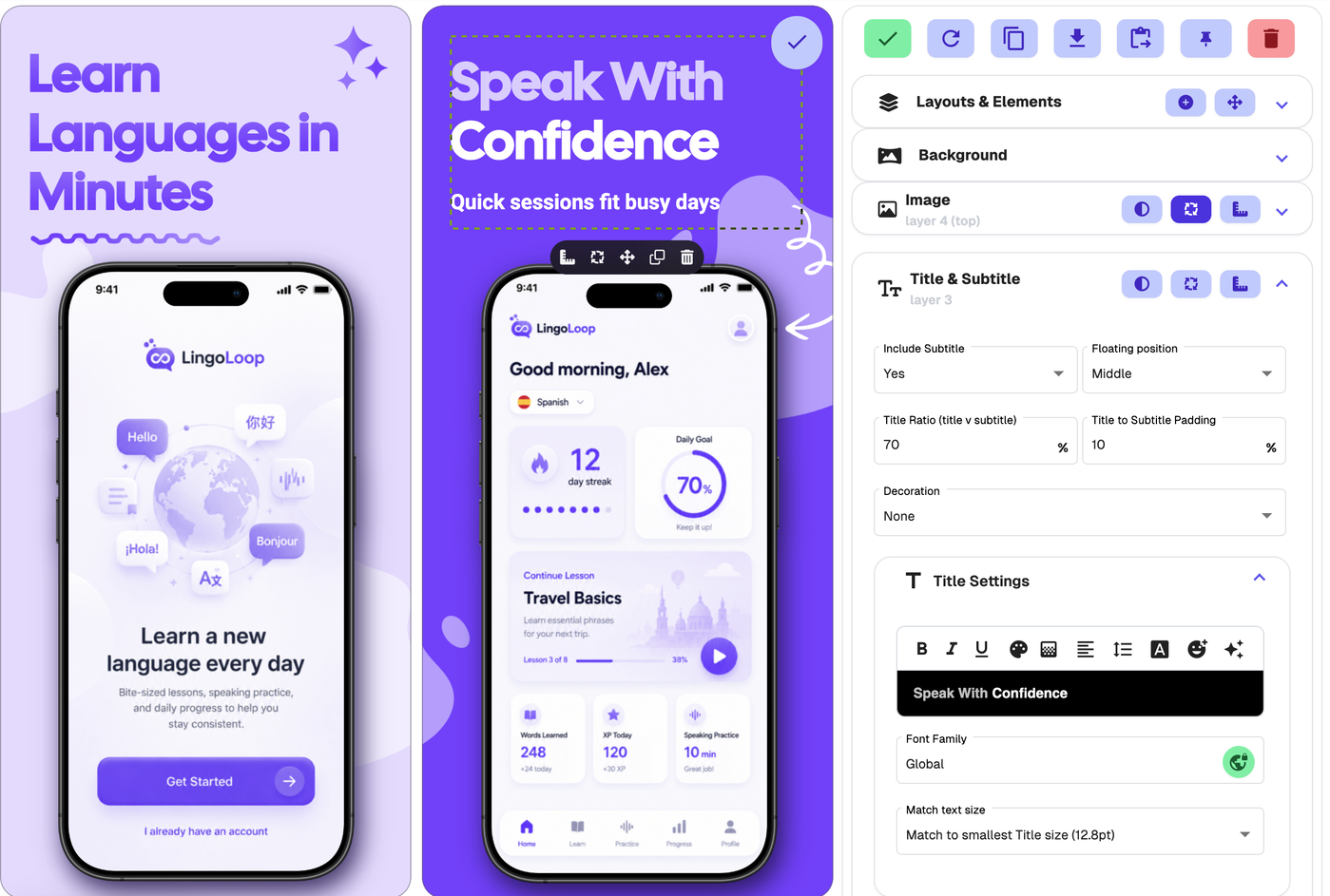
Open the title settings
To adjust title or subtitle size:
Open your project in the AppScreens designer.
Click the title text on the screenshot you want to edit.
Open the Title / Title & Subtitle section in the edit panel.
Check the title and subtitle options
The title settings control how the text behaves inside the title element.
Include Subtitle
Choose whether the title element includes a subtitle.
If Include Subtitle is set to Yes, the title and subtitle share the same title element space.
Floating Position
Choose where the text sits inside the title element.
For example, the text can sit toward the top, middle or bottom of the available title area.
Title Ratio
Title Ratio controls how much of the available space is used by the title compared with the subtitle.
For example, if the title ratio is set to 70%, the title uses 70% of the available space and the subtitle uses 30%.
Title to Subtitle Padding
This controls the spacing between the title and subtitle.
Increase the padding to create more space between them. Decrease it if you want the title and subtitle closer together.
Check the text size setting
The Match Size setting controls how AppScreens handles text sizing.
Match to smallest Title size
This keeps title sizes consistent across screenshots and languages.
AppScreens checks the available space and matches titles to the smallest title size currently needed across the set.
This is recommended for most projects, especially if you are exporting multiple screenshots, device sizes or languages.
No / Manual control
Use manual control if you do not want the title or subtitle to match other titles in the project.
This is useful when you want one screenshot to have a larger or more prominent heading than the others.
Max Font Size
When using manual control, Max Font Size sets the maximum size the text can reach.
Important: this is only a maximum. The text may still appear smaller if there is not enough space inside the title element.
If the text is scaling down, you may need to make the title element larger.
Check line and spacing settings
Other text settings can also affect how large or compact the title appears.
Character Spacing
Adds extra space between letters.
Line Height
Controls the vertical spacing between lines of text.
Multiline
Controls how longer text behaves inside the title element.
Wrap
Moves text onto a new line when it reaches the available width.
Single line
Keeps the text on one line. If the text is too long, AppScreens reduces the font size so it fits.
If your title is shrinking too much, try using Wrap instead of Single line, or increase the size of the title element.
Check the size of the title element
Text size is limited by the space available inside the title element.
If the title element is too small, your title or subtitle may shrink even if your font settings are correct.
To resize the title element visually:
Hover over the title or subtitle on the screenshot.
Click the move icon in the small toolbar that appears to enter drag-and-drop mode.
Resize the title element on the canvas.
Click Save positions or the green tick when finished.
If the title element is hard to select because it is behind another element or partly off the screenshot, use another drag-and-drop entry point instead. You can open Layouts & Elements and click the move icon next to the heading, click Drag and drop inside Layouts & Elements, open the right-angle ruler popout and click Drag & drop, or use ⌘ + K on Mac.
Use Exact Dimensions for precise sizing
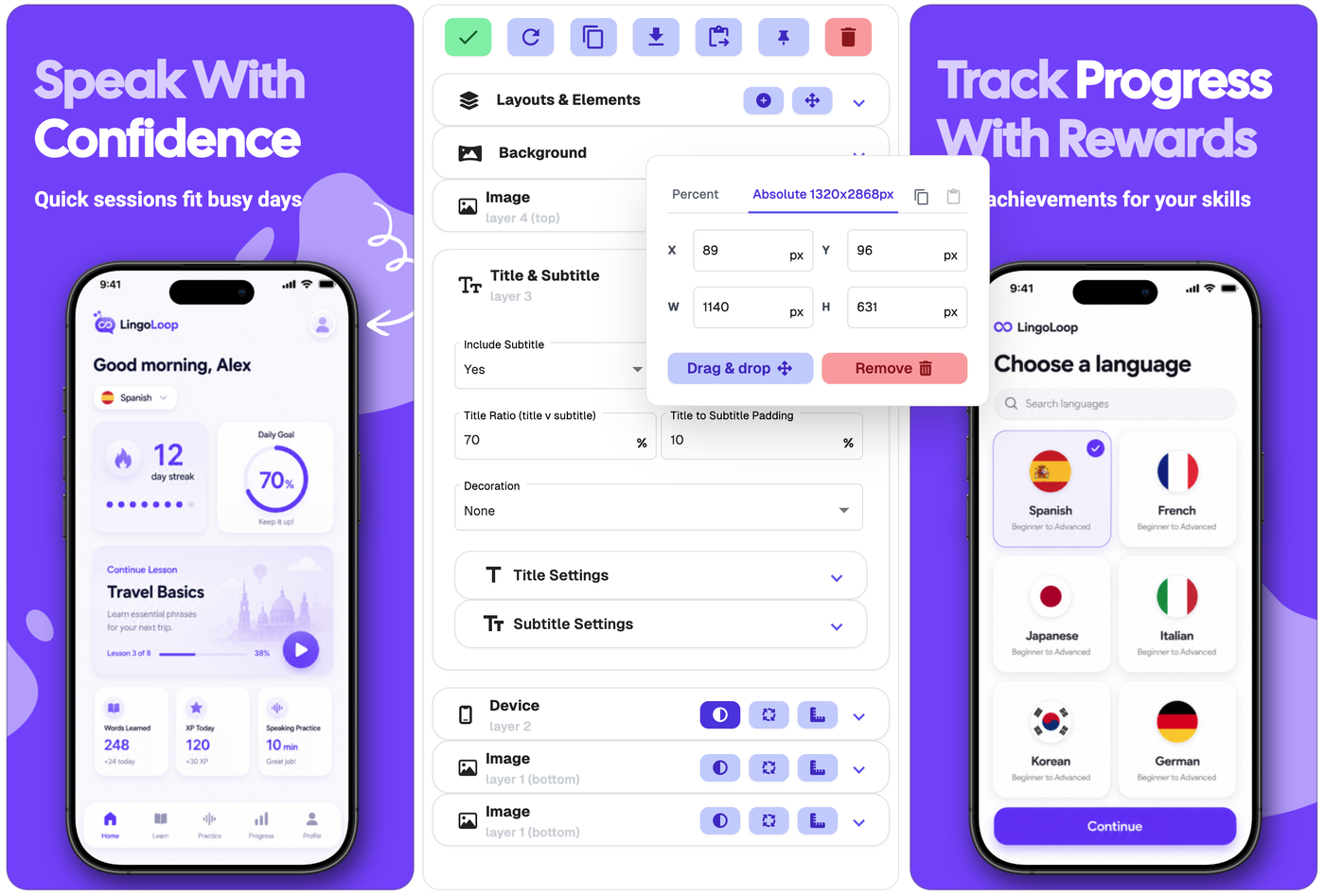
Use Exact Dimensions when you want precise control over the title element’s size and position.
You can open Exact Dimensions in two ways:
click the right-angle ruler icon beside the title element
click Exact Dimensions inside Layouts & Elements
For an individual title element, you can adjust values such as:
X position
Y position
width
height
spacing above or below the element
You can use Percent or Absolute values for an individual element.
The full Exact Dimensions view is percentage-based and is useful when you want to adjust the screenshot’s layout structure, layers, padding and element placement more precisely.
Why is my title still smaller than expected?
Your title may appear smaller than expected if:
the title element is too small
the title text is too long
the subtitle is taking up part of the available space
Single line is forcing the text to stay on one line
Match to smallest Title size is matching another smaller title
the max font size is set lower than expected
the screenshot is being viewed in a different output size or language
In most cases, increase the size of the title element first, then adjust the text size settings if needed.