

How do I share my screenshots with a public link?
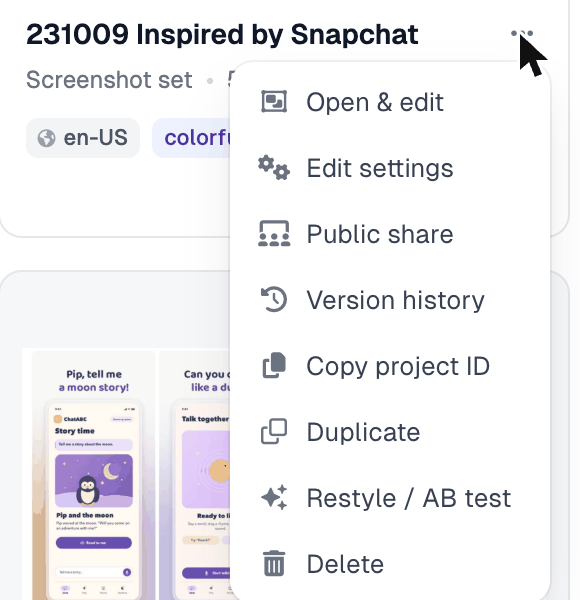
To share your screenshots with someone who does not need to edit them, open the ⋯ menu on the project card on the Projects page, choose Public share and click Copy link. Anyone with the link can view the project’s screenshots without signing in, but they can’t edit them.
How to create a public share link
Go to the Projects page.
Click the ⋯ menu on the project card and choose Public share.
The Share Project window shows the Public link. Click Copy link, or click the open icon to view the shared page yourself.
How do I stop sharing or change the link?
Open Public share again and, under Replace or delete the link:
Click New link to replace it with a new one.
Click Delete link to stop sharing.
Either way, the current link stops working for anyone who has it.
Can people edit my project from a public link?
No. A public link is view-only. To let someone else edit the project, see Can I create a multi-user account so multiple people have design access to my project?