

How do I generate AI captions for titles and subtitles?
AppScreens can generate AI caption ideas for your screenshot titles and subtitles.
AI captions are based on your app information, such as your app description and app metadata, so you need to have an app added to your project before generating captions.
Before you can use this feature, you need to have an app added to your project. AI captions are built from your app description and metadata.
How to open the AI caption selector
Open your project in the designer.
Click the Title on the screenshot you want to edit.
Open the Title / Title & Subtitle section in the edit panel
Click the AI stars icon.
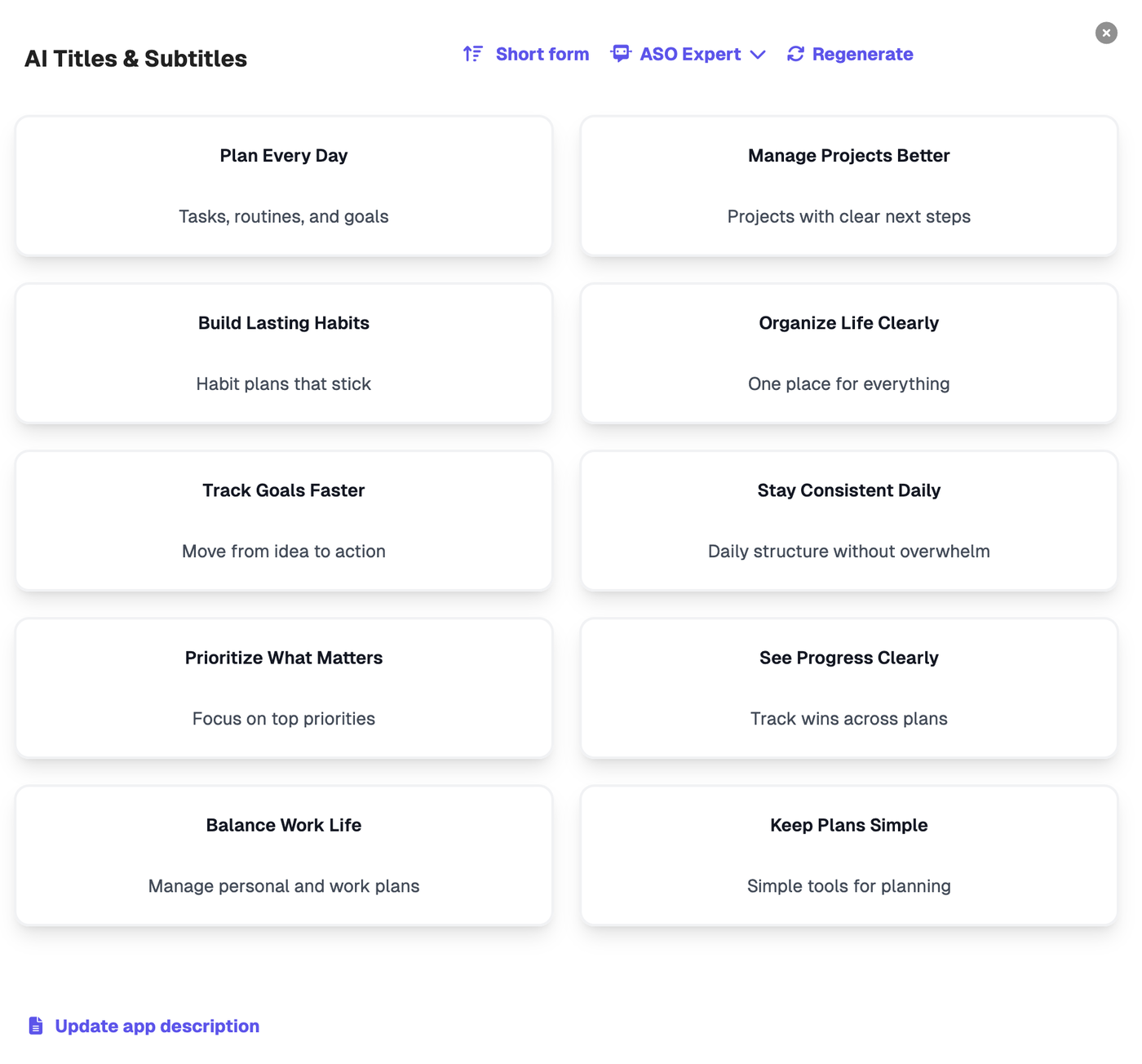
This opens the AI Titles & Subtitles selector.
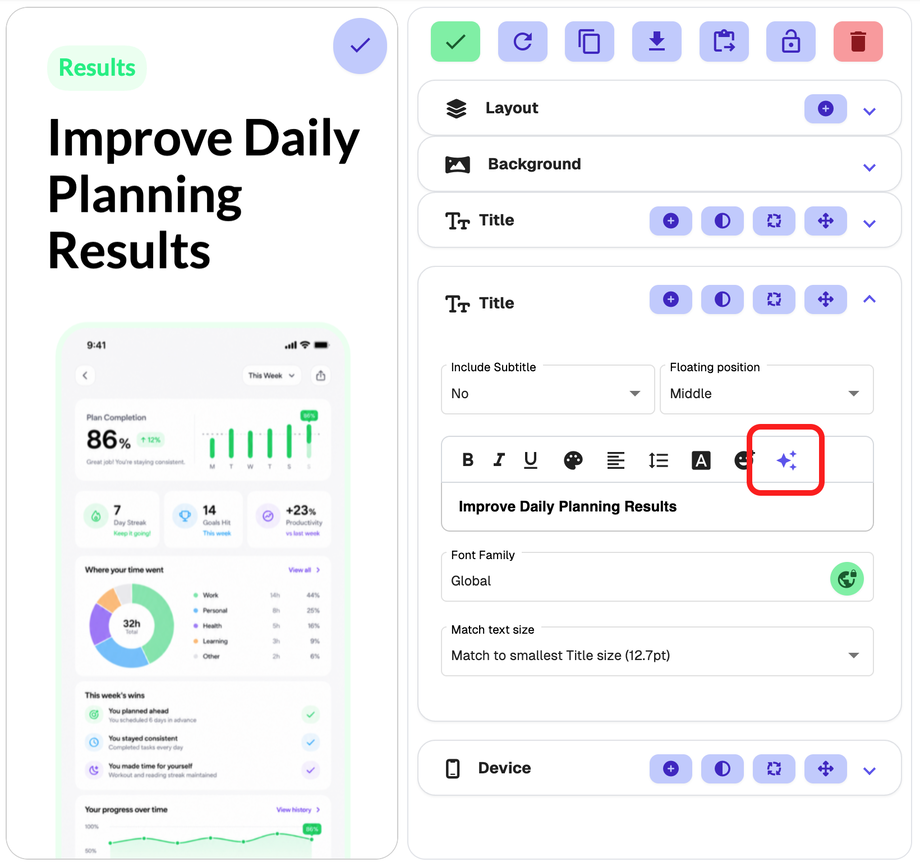
Generate AI caption ideas
Inside the AI caption selector, you can choose how you want AppScreens to generate suggestions.
You can choose:
Short form
Creates shorter, more compact caption ideas.
Long form
Creates longer, more detailed caption ideas.
You can also choose an AI caption style, such as:
ASO Expert
Search Intent
Outcome
Emoji
Direct
Friendly
Inspire
Persuasive
Story
Each style gives your captions a different tone and approach.
Replace your current caption
To use an AI caption:
Review the suggested captions.
Click the caption you want to use.
AppScreens replaces the current title or subtitle with the selected suggestion.
If you want more options, click Regenerate to create a new set of suggestions.
Tips for better AI captions
AI captions work best when your project has clear app information.
If the results are not quite right, try:
switching between Short form and Long form
choosing a different caption style
clicking Regenerate
checking that your app metadata and description have been added to the project.