

How to undo or redo?
You can undo and redo actions if you make a mistake or want to go back.
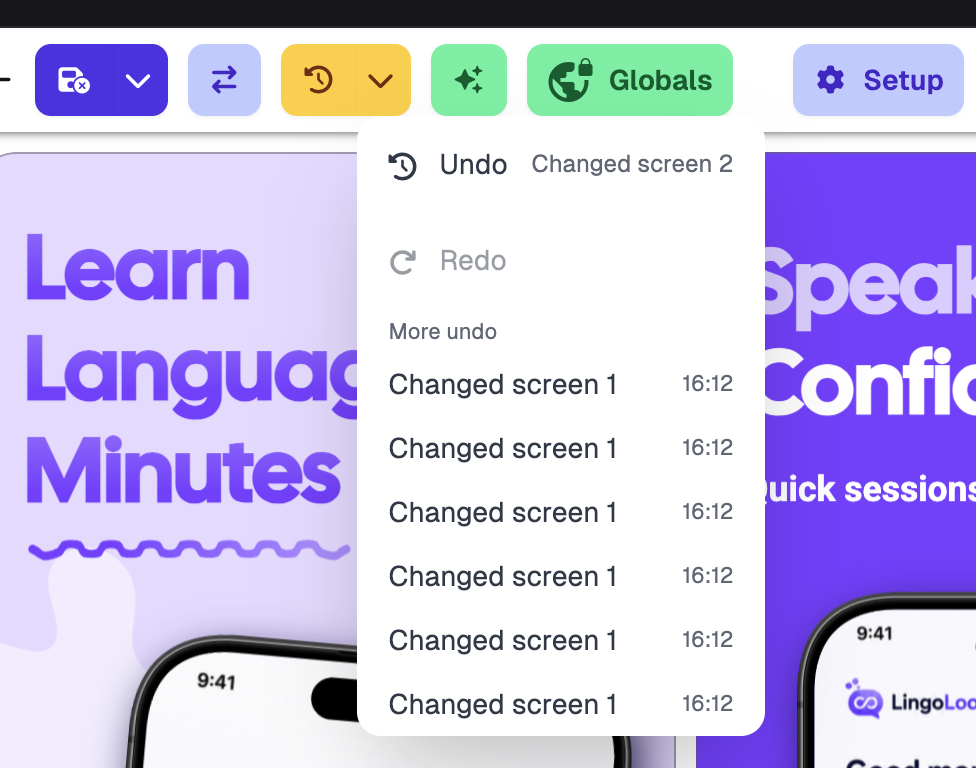
On the top toolbar, click Undo (the clock icon) to quickly undo, or press ⌘ + Z.
Click History / redo (the arrow beside it) to see the change history, then undo to a previous change or redo a change. You can also redo with ⇧ + ⌘ + Z.
Go back to an earlier saved version
To go back to an earlier saved version, use Version history. On the Projects page, open the project's menu and choose Version history. Each saved version shows who made it, including changes made by an AI agent. Click Restore on the version you want.
Save or discard any unsaved changes first, because Restore isn't available while you have them.